
Help center > Billing and payments > Collecting payments
Collecting payments
- Storing card on file
- Setting up auto-pay
- Refunding a client
- Giving clients credit
- Billing history
- Splitting payment
Storing card on file
You can store a client's card on file in Practicepicnic for later processing. There are two main ways you can do this:
- Sending clients a Card Form for them to fill out.
- Adding the client's card yourself (eg: during an intake session)
Card form
You can send clients a card form through the regular Intake process. Go to the client's Forms tab, click on Send Forms and then select the Card Form from the options.
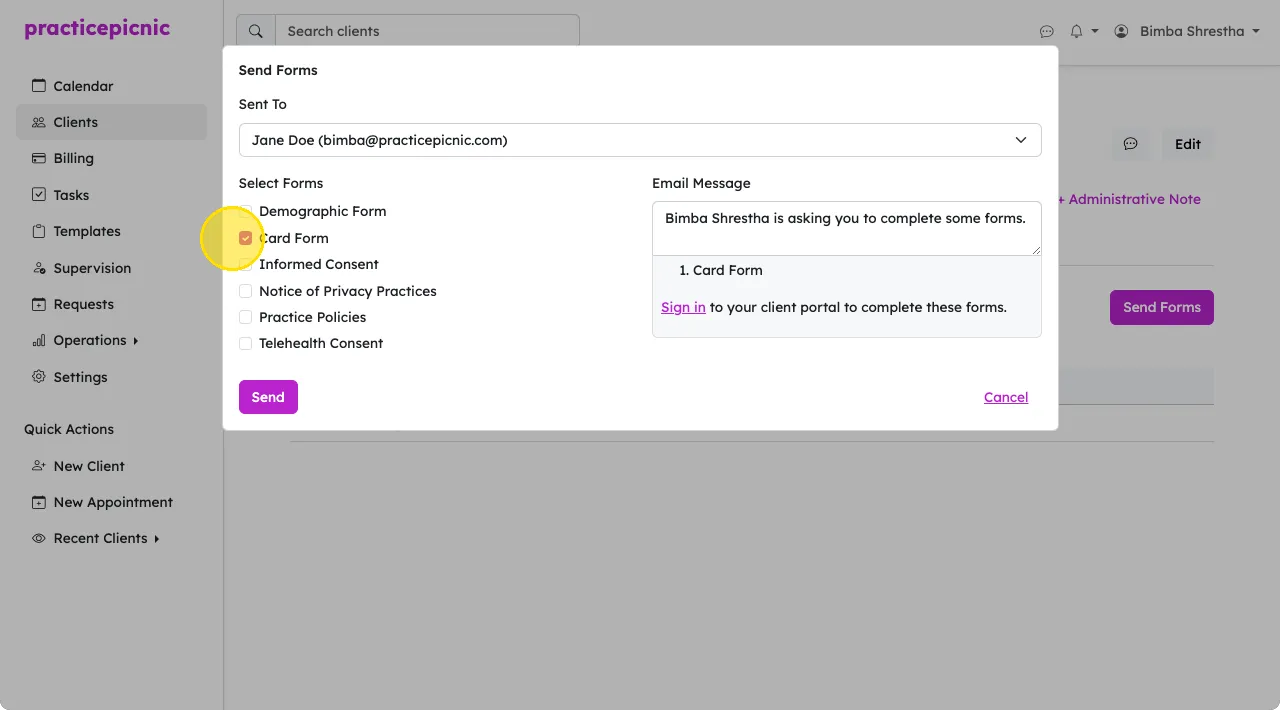
Note that for the Card form to be visible here, your practice must be enrolled in online payments through Stripe.
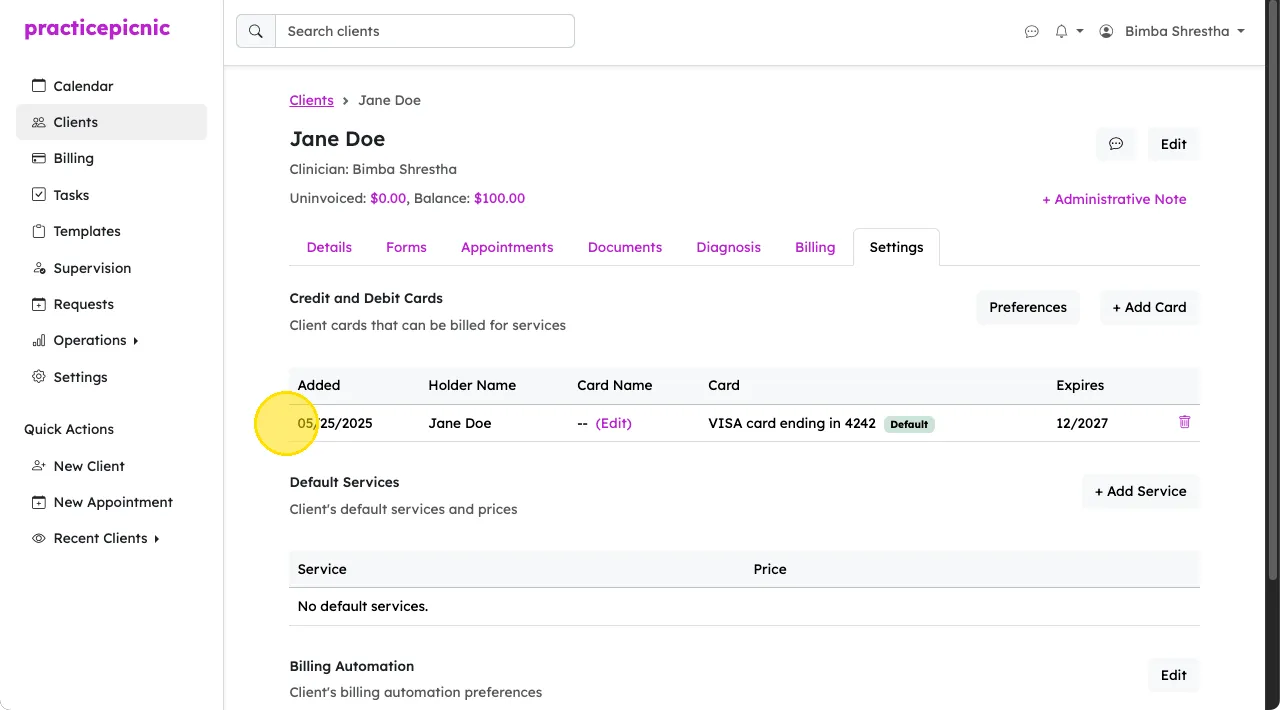
Once a client fills out the Card form, their card will be added to their client record. You will get a notification when this happens. You can also check their Settings page to confirm that a card has indeed been added.
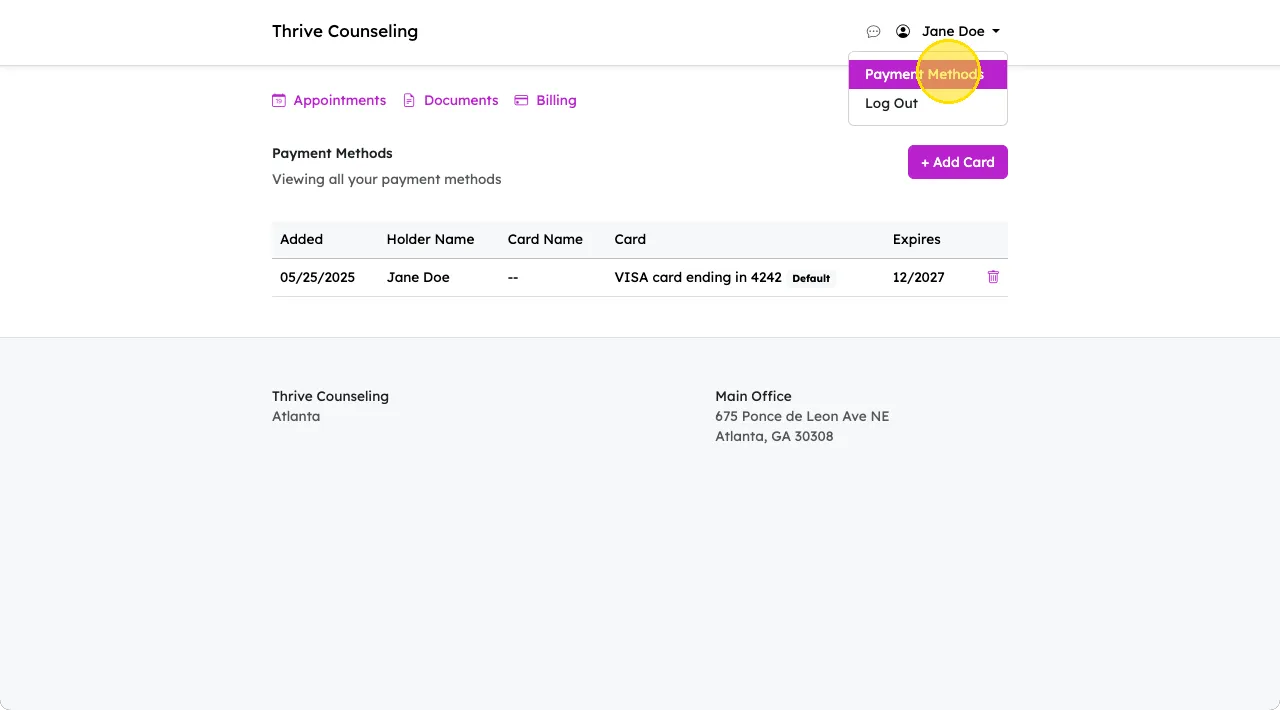
Clients can also add a card directly from their client portal through the payment methods page. These cards will appear in the client's Settings tab as well.
Setting up auto-pay
Auto-pay needs to be first set up in the practice settings by an Admin clinician or practice manager. See the Invoicing and automation page for details on how to do that.
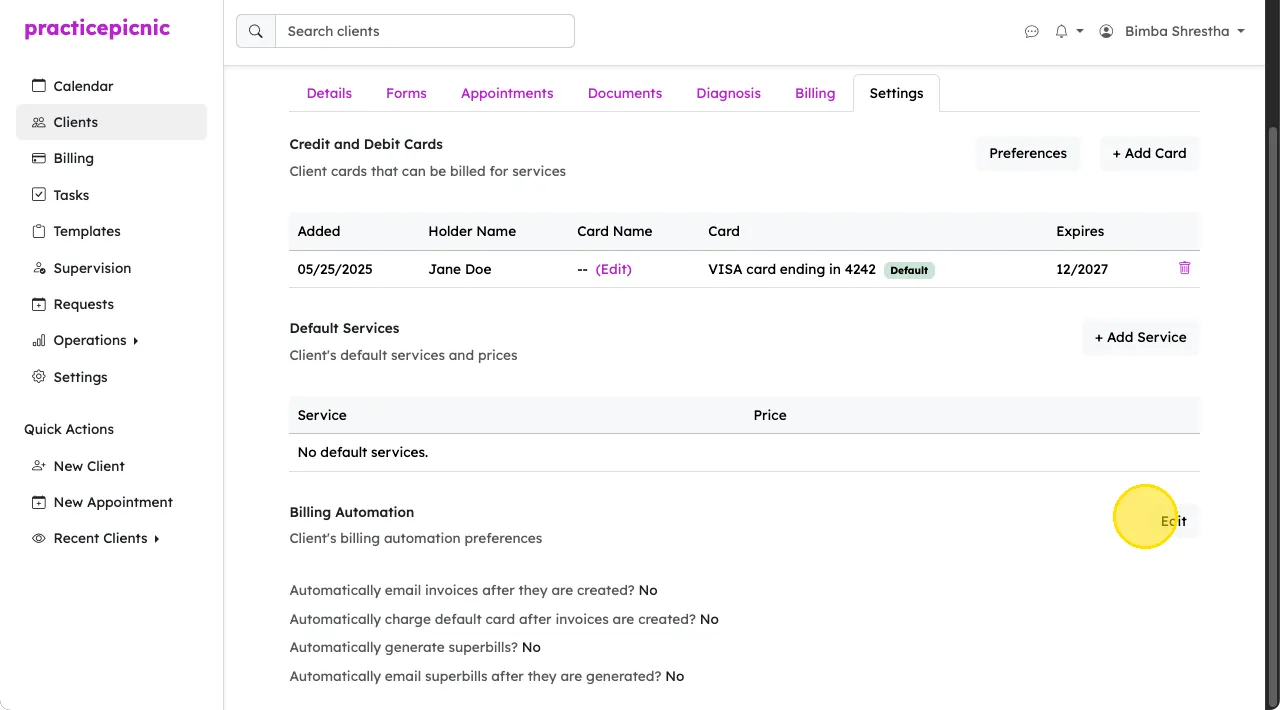
Once either Daily or Monthly auto-pay has been set up at the practice level, you can additionally control auto-pay settings at the client level from the client's Settings tab. The following preferences will control whether auto-pay and auto-emailing of invoices is enabled for clients:
- Automatically email invoices after they are created?
- Automatically charge default card after invoices are created?
By default, both of these settings will match that of the practice. So if auto-pay is enabled for the practice, it will be enabled by default for all clients.
Refunding a client
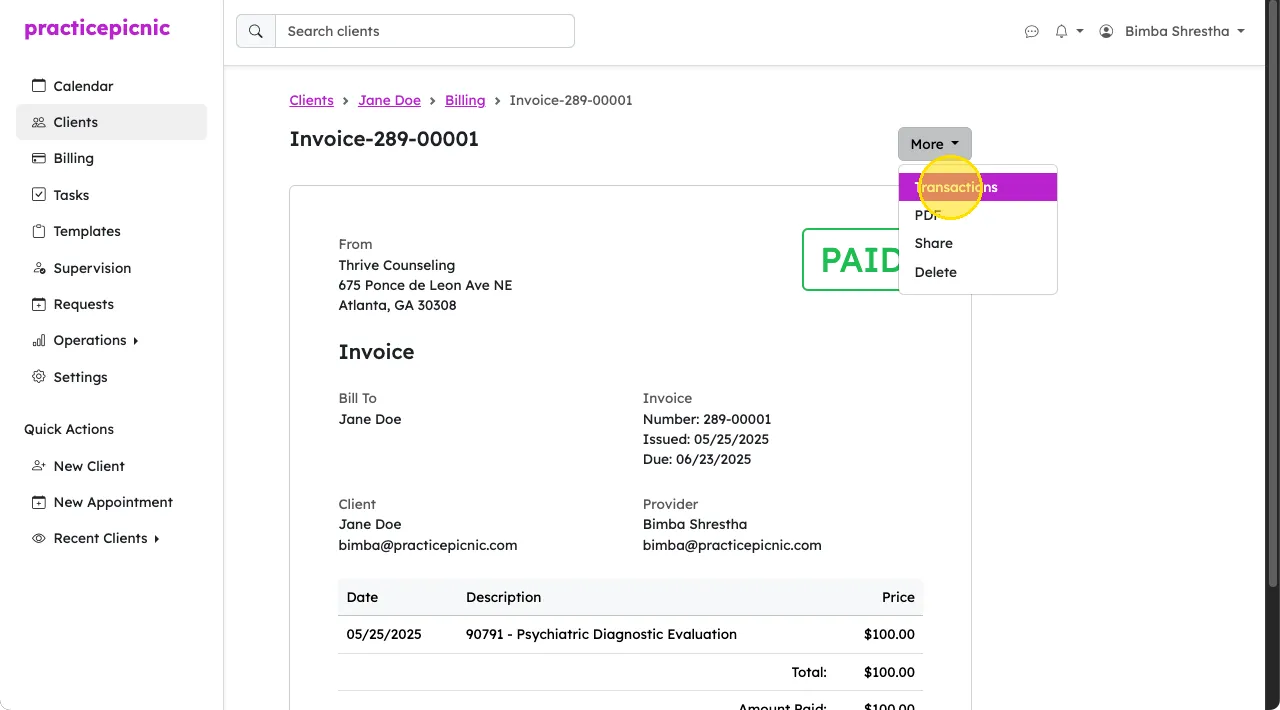
To refund a client payment, first select the paid invoice from the client's Billing tab. From the invoice page, click More > Transactions.
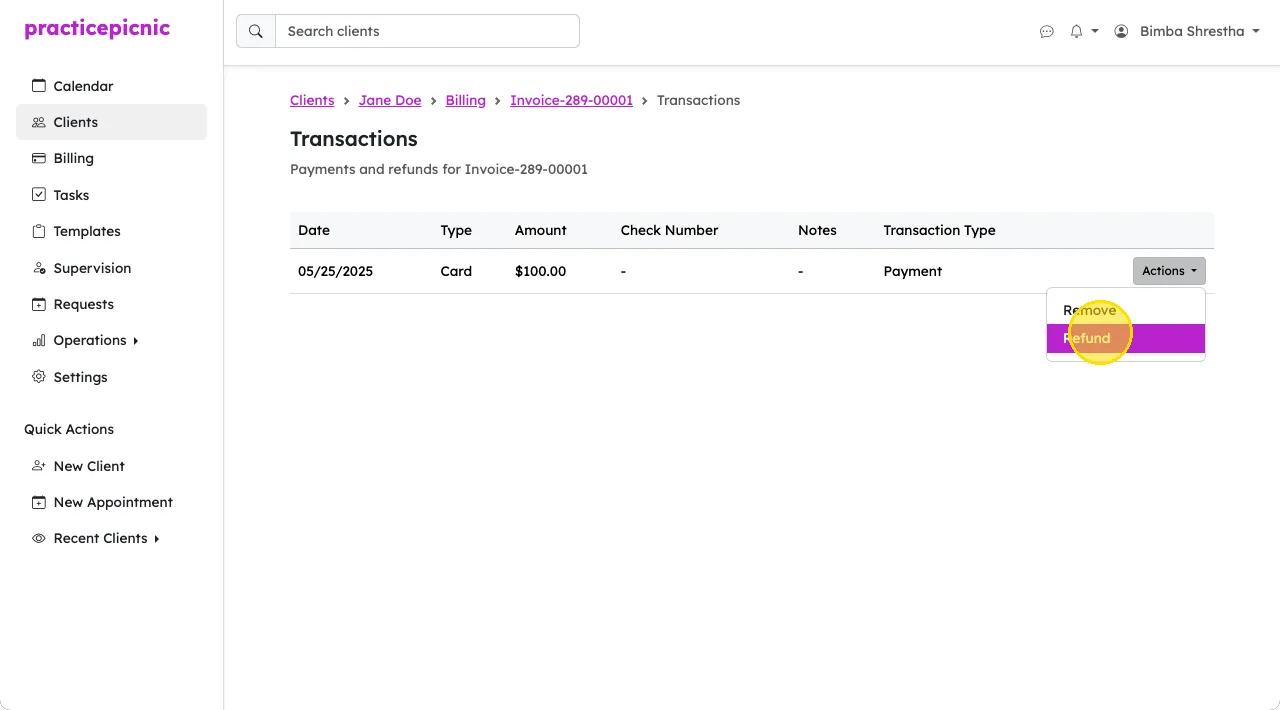
Click Actions > Refund on the payment that you'd like to refund. Confirm the refund when prompted.
You cannot perform partial refunds at this time. If you incorrectly charged a client the wrong amount, you can use the Refund and rebill option when issuing the refund, which lets you update the invoice with the correct amount and charge the client again.
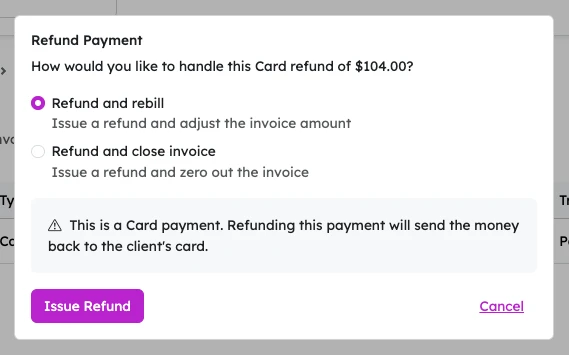
If you'd like to refund the client without charging them again, use the Refund and close invoice option instead. This issues the refund and zeroes out the invoice.
Giving clients credit
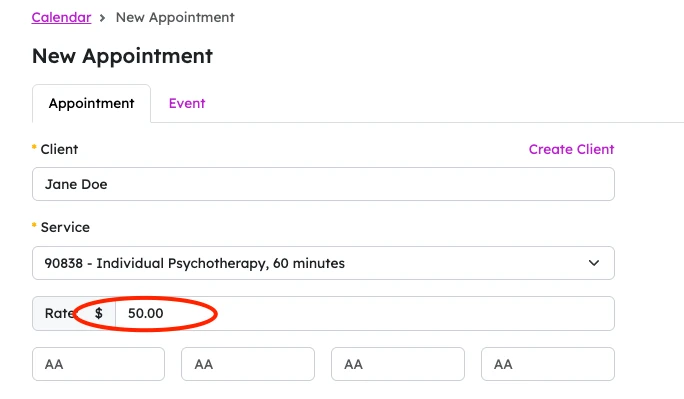
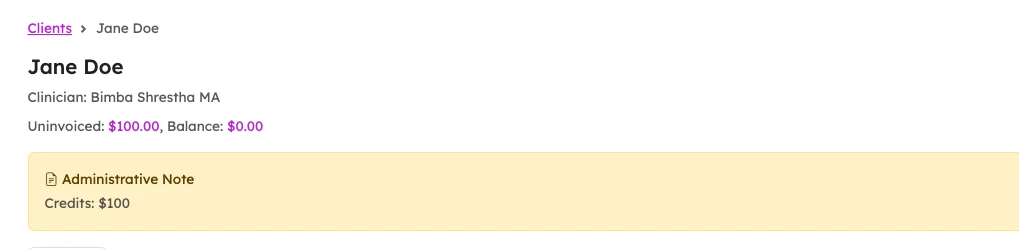
Practicepicnic doesn't have a dedicated credit system for clients. The typical workaround is to simply discount the client's next appointment by the credit amount. When creating or editing the appointment, adjust the Rate down by the credit you'd like to apply.
If you'd like to keep track of the credit, you can store the details in the client's Administrative note section.
Billing history
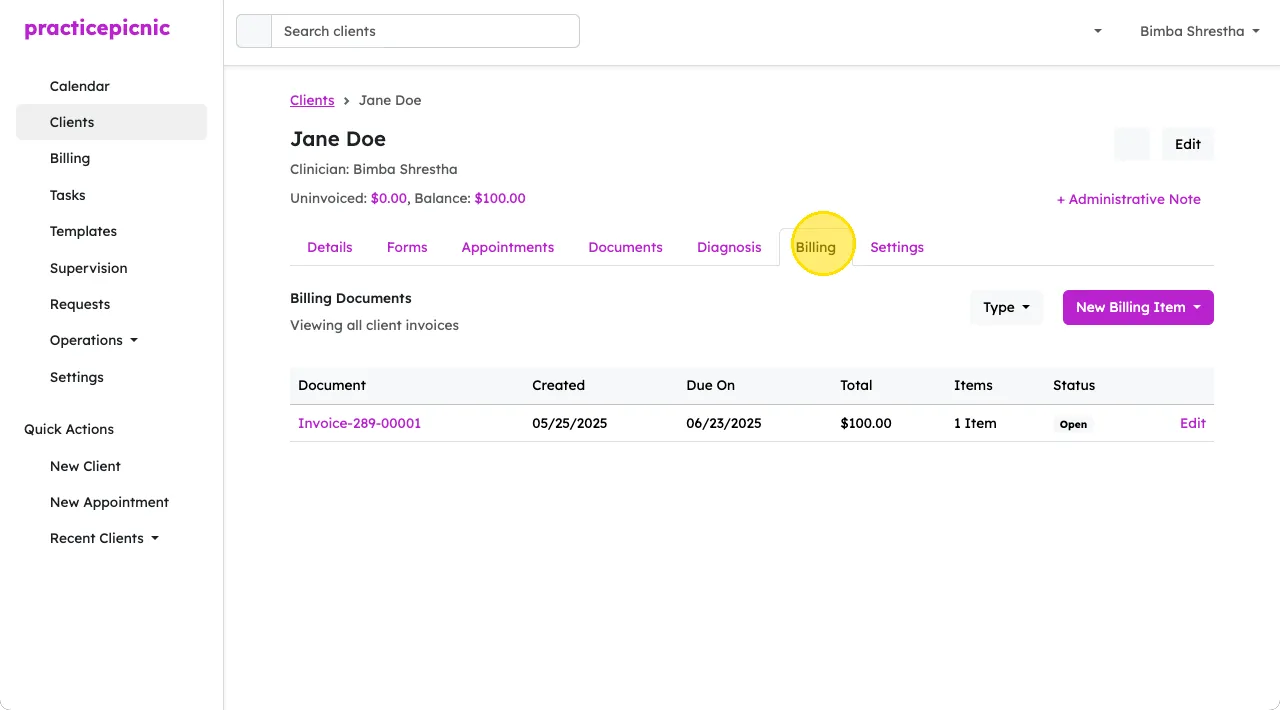
You can view a client's billing history from their Billing tab.
You can also view billing history for all your clients from the different reports under Reports. You can filter through the report options using the dropdown on the top right. If you're not an Admin clinician or Practice manager, you won't see the clinicians dropdown.
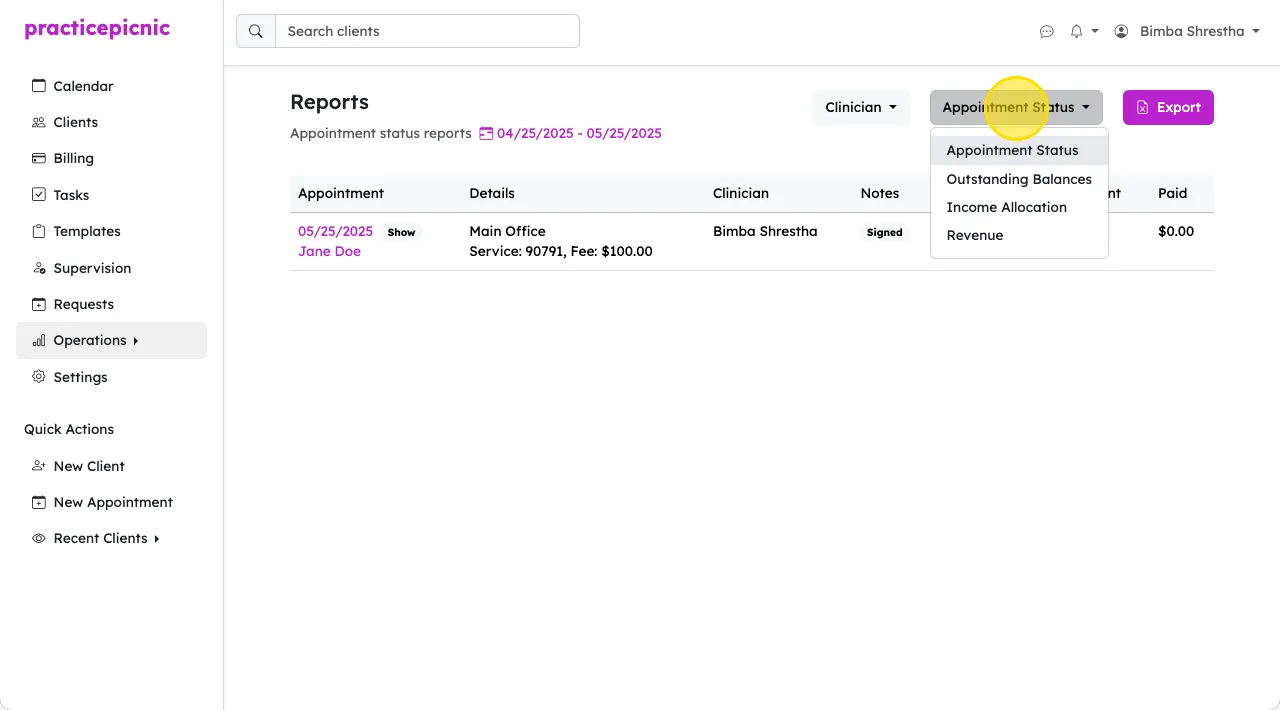
If you are an Admin clinician or Practice manager, you can also view your entire practice's billing history from either the reports page above. For you it'll be under Operations > Reports. You can also view it from the Billing page.

Splitting payment
You can split a single invoice across multiple people by recording a separate payment for each person's share:
- Make sure everyone who is paying has a card on file. See Storing card on file.
- Add a Card payment to the invoice for each person's portion of the balance, selecting that person's card. See Manual billing for how to add a payment.
For example, if two people are splitting the cost of a session, create the invoice and then add a payment for half the balance using person 1's card, followed by another payment for the remaining half using person 2's card.
There isn't a way to automatically split payments at this time.